Once your Deriv account is connected to TradingView, you can analyse a market, place an order, and manage the resulting position from the same screen. TradingView provides the charting and trading interface, while your connected Deriv account remains the trading account behind the connection. This guide explains how to prepare and submit an order, check its status, manage risk instructions, and close an open position.
Quick summary
- Choose a Deriv instrument, order type, direction, quantity, and price where required.
- Review the order details and add take-profit or stop-loss instructions where supported.
- Track pending orders and open positions from the Trading Panel or directly on the chart.
- Modify or cancel eligible pending orders and manage or close open positions.
Why place Deriv trades from TradingView?
A free TradingView account is enough to connect to Deriv and place or manage trades. Paid TradingView plans are optional and provide additional features.
The integration keeps your chart and trading controls together. This can help you:
- act on your analysis without changing platforms
- see pending orders and open positions in relation to the current market price
- add take-profit and stop-loss instructions where supported
- review orders and positions from the Trading Panel
Your Deriv account remains the trading account behind the connection. Deposits, withdrawals, and other account management still take place on Deriv.
What should you check before trading?
Before placing an order, check that:
- your Deriv account is connected to TradingView
- check that the correct Demo or Real account is selected in the Trading Panel. To switch to Real, you must first create a real TradingView trading account through Deriv.
- you understand the instrument, trade size, margin, and risk before submitting an order
- the market and order type you want are available for the selected instrument
If you are learning the workflow, start with a demo account. Demo results do not guarantee the same outcome in live trading.
How do you place an order on Deriv TradingView?
Step 1: Choose a Deriv instrument
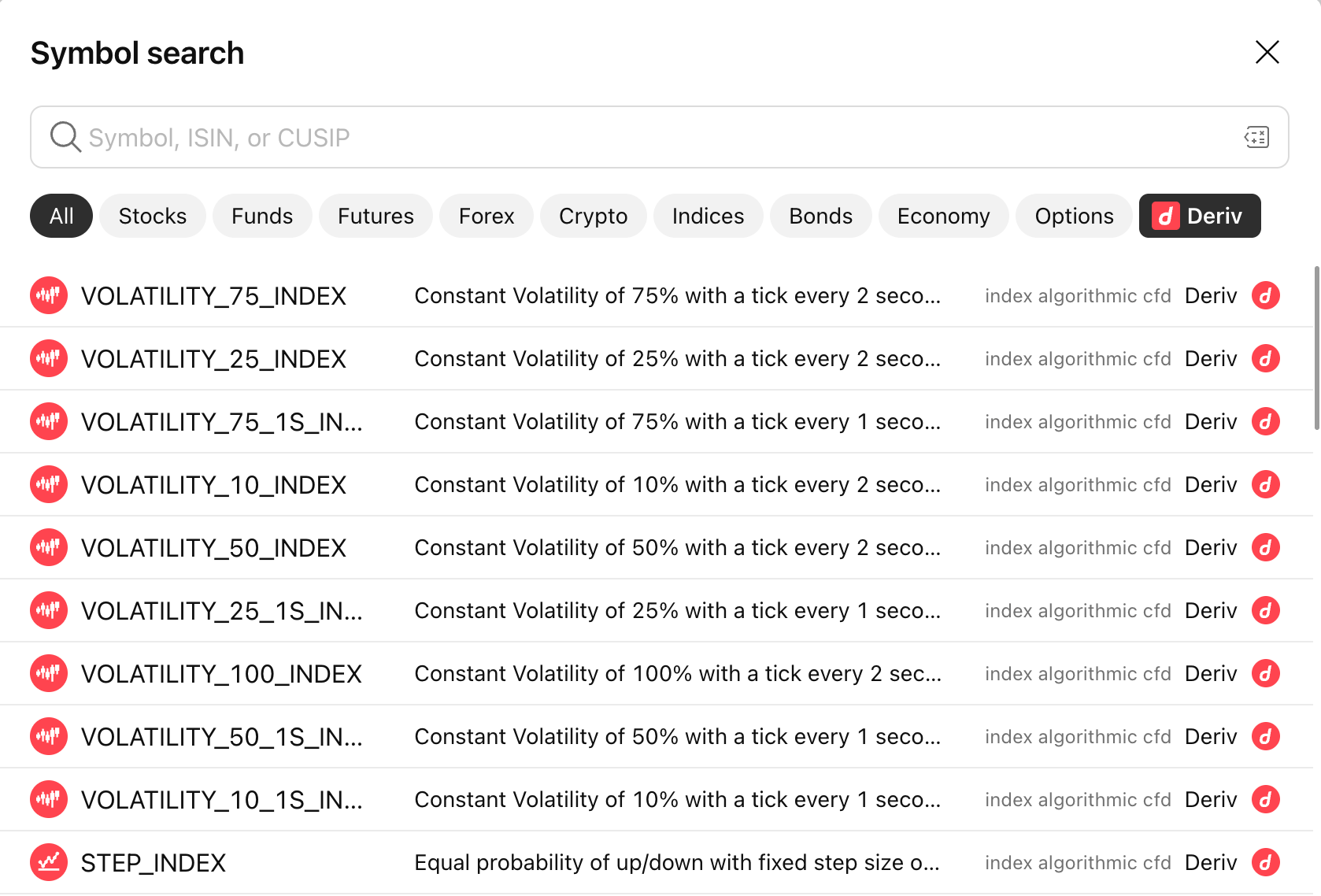
Click the symbol name at the top-left of the chart. In symbol search, select the Deriv filter, search for your instrument, and select the result showing Deriv as the provider.
If you use the watchlist’s + button instead, this adds the instrument to your watchlist. Then click the instrument in the watchlist to open its chart.
Before continuing, confirm the instrument name and chart timeframe.
Step 2: Choose buy or sell
With one-click trading enabled, an order can be sent immediately without a preview. Leave it off while you are learning the workflow.
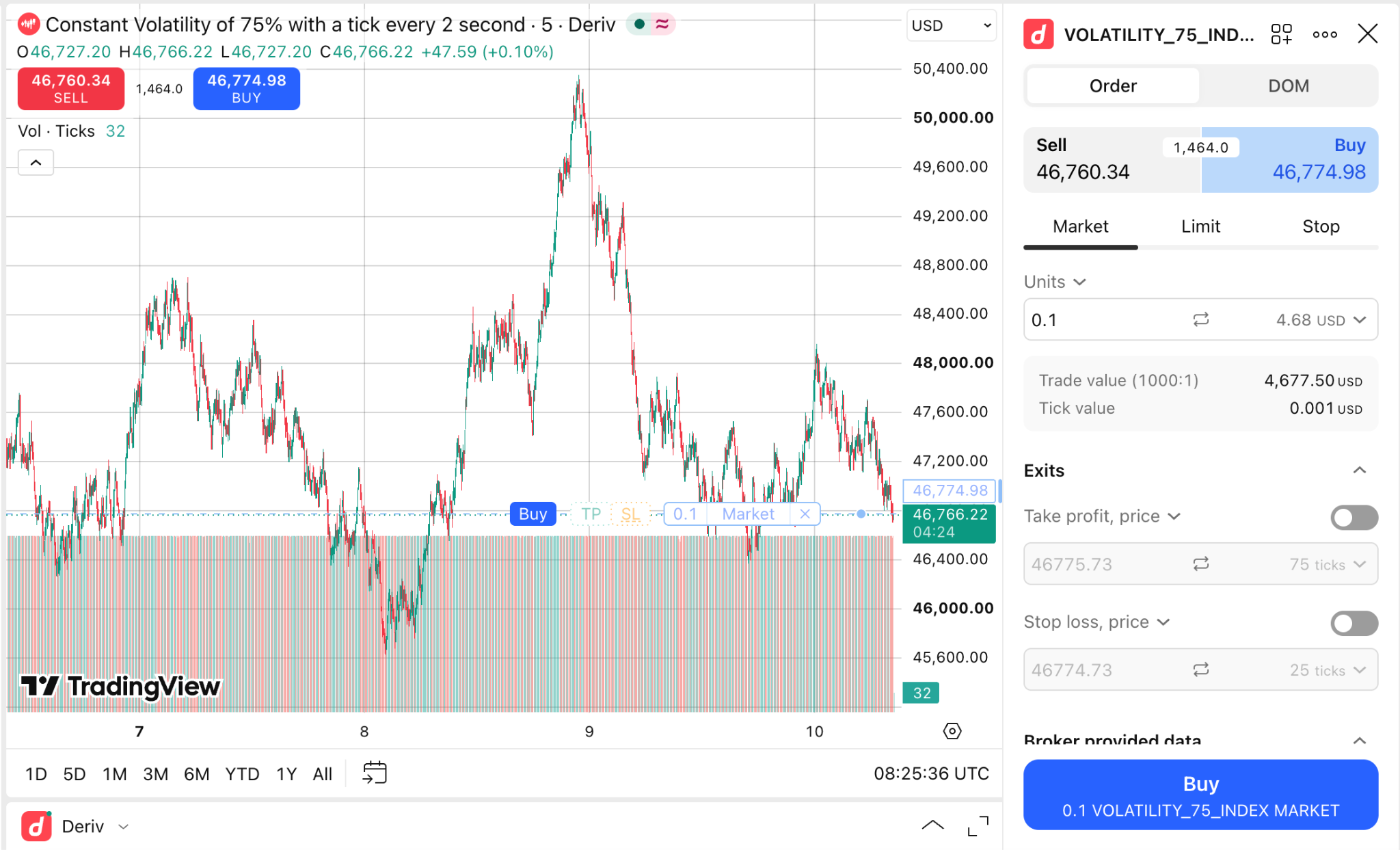
Select Buy or Sell on the chart, or open the order ticket from the Trading Panel. Choose Buy if your trade plan is based on the price rising, or Sell if it is based on the price falling.
Step 3: Choose the right order type
Choose the order type that matches your trading plan:
A pending order is an order waiting for its execution conditions to be met. If it fills, the resulting trade becomes an open position.
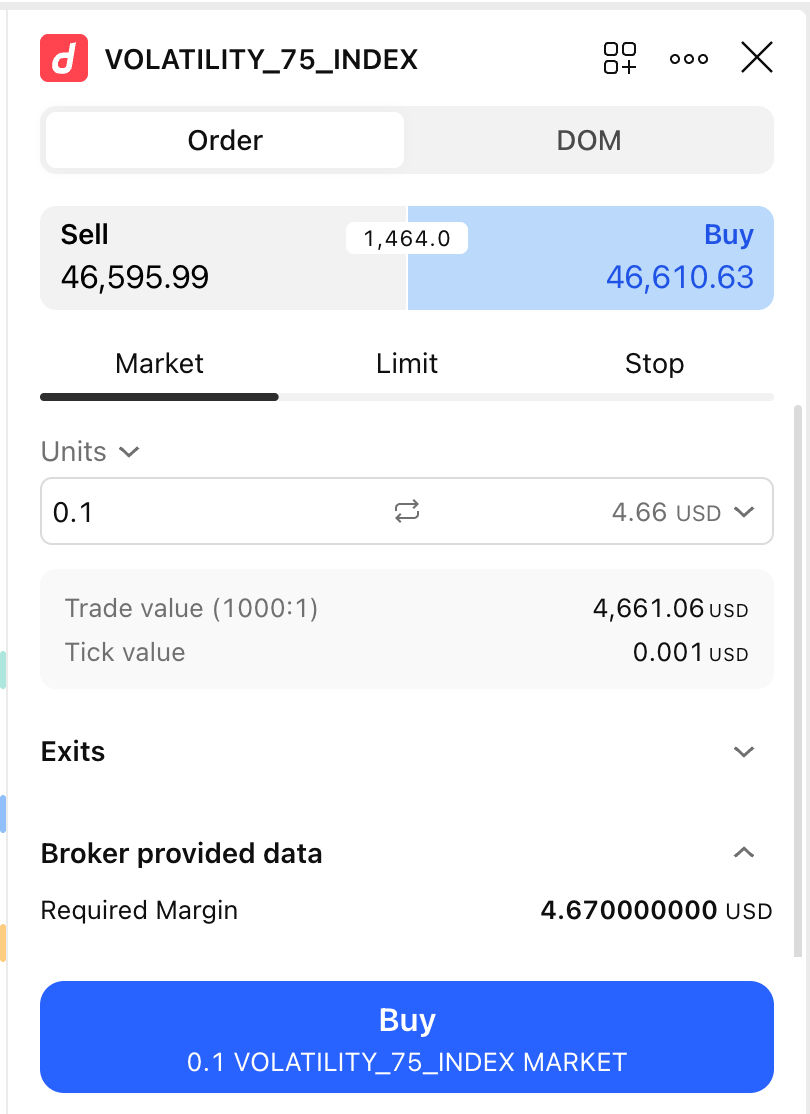
Step 4: Enter trade size and price
Enter the quantity. For a pending order, also enter the required limit price or stop price, depending on the selected order type.
Before continuing, check:
- Is the instrument correct?
- Is the direction correct?
- Is the quantity within your risk limit?
- For a pending order, is the entry price on the intended side of the market?
Step 5: Set take profit and stop loss
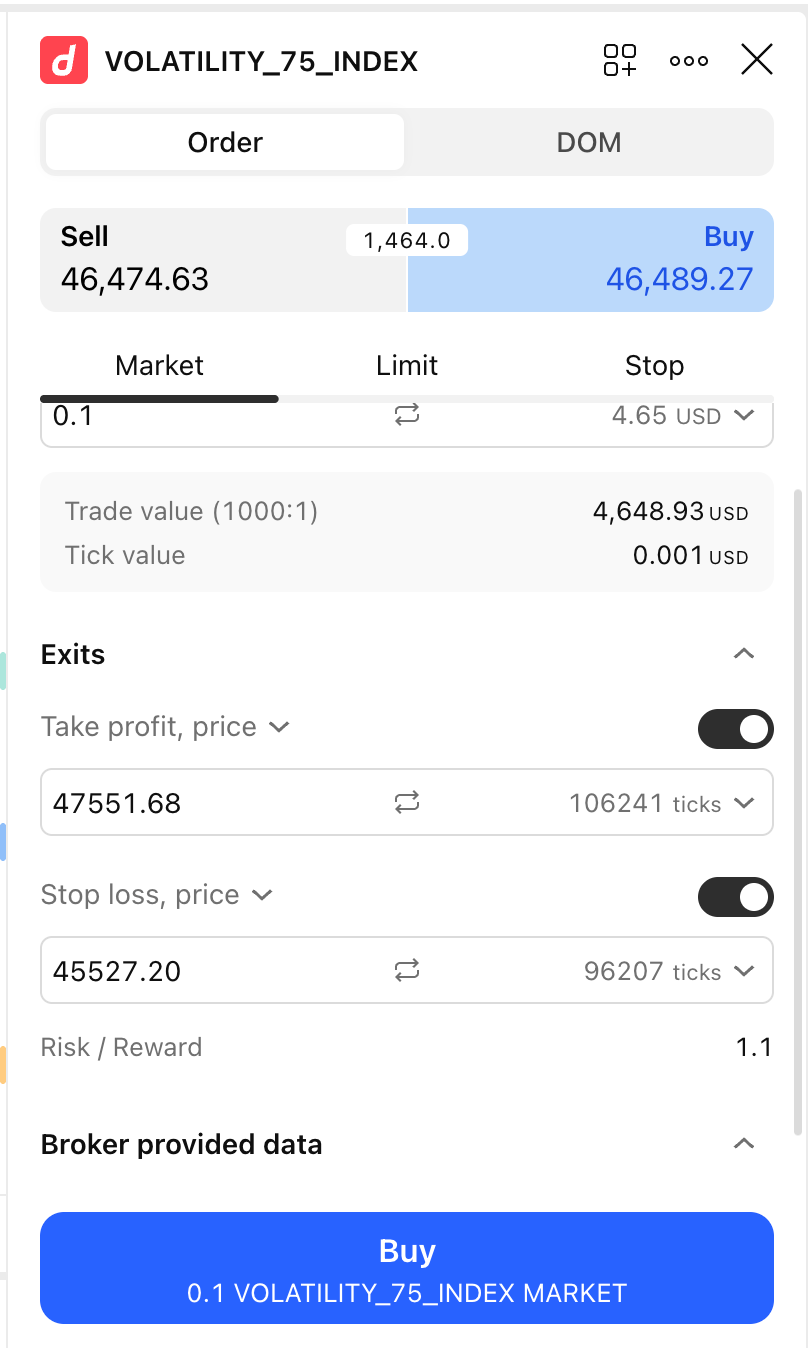
If available for the selected order, turn on Take profit and Stop loss, then enter the price, distance, or other supported value shown in the ticket.
A take-profit instruction is designed to close the position if its target is reached. A stop-loss instruction is designed to limit loss if the market moves against the position. Neither guarantees an exact execution price in fast-moving or gapping markets.
TradingView currently allows take profit and stop loss to be attached when entering market or limit orders. Check which take-profit and stop-loss controls are available for the selected Deriv instrument and order type.
Step 6: Review and submit the order
Check the instrument, direction, order type, quantity, requested price where applicable, and any take-profit or stop-loss instructions.
Step 7: Check your order status
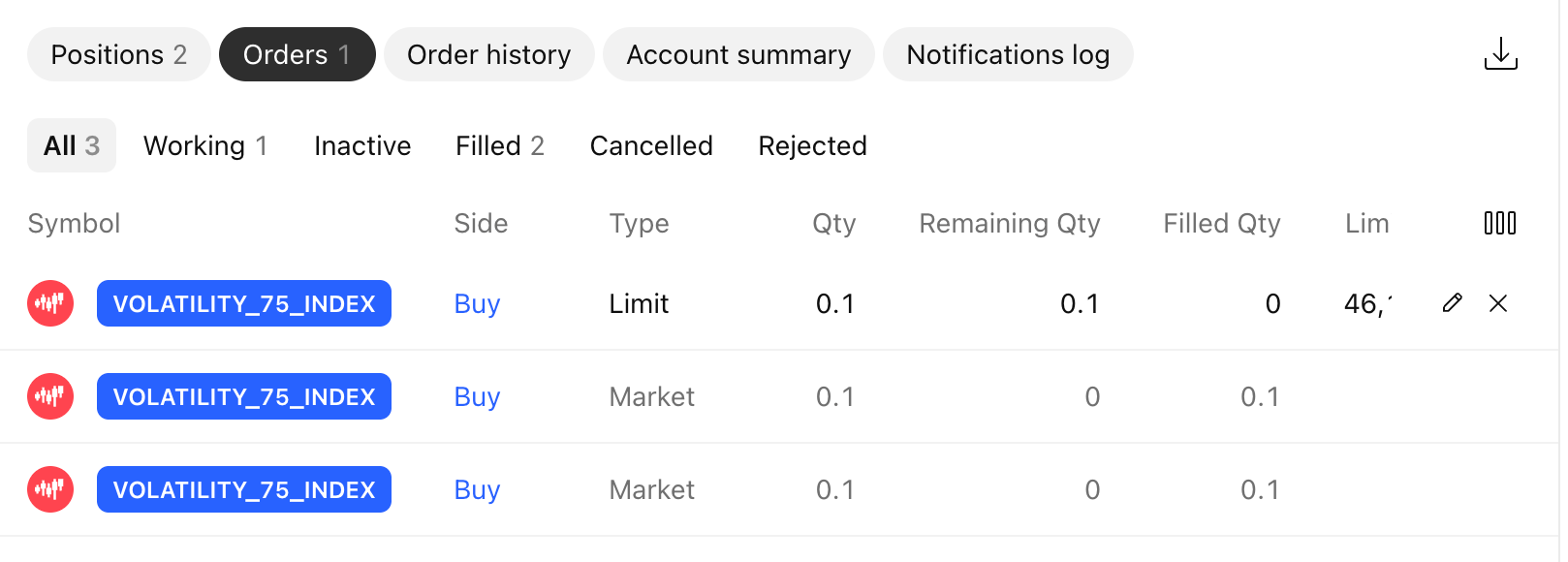
Open the Orders tab in the Trading Panel. A market order may appear in order history after execution, while an unfilled limit or stop order remains in the active orders list.
Check its symbol, side, quantity, order type, requested price, and status.
The basic sequence is:
Submit order → order fills → position opens → manage or close position.
How to manage orders and positions on Deriv TradingView
Step 8: Modify or cancel a pending order
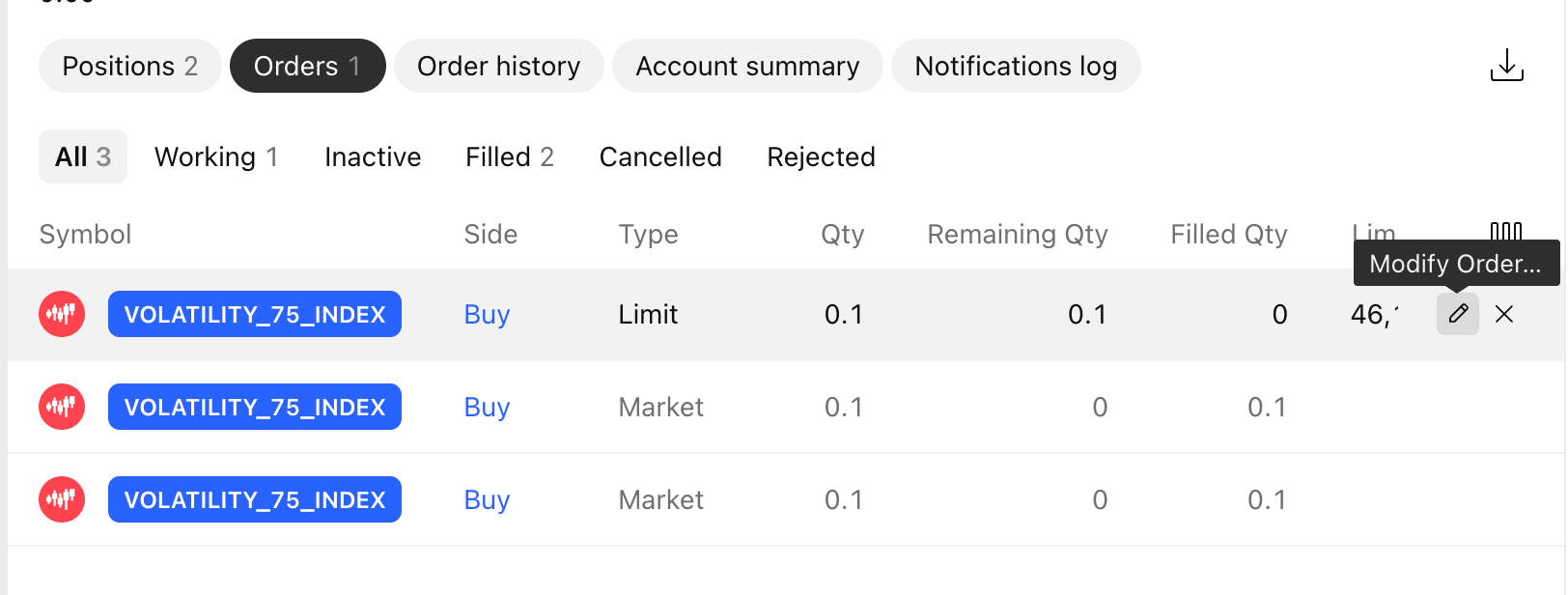
Find the pending order in the Orders tab or select its line on the chart. Use the available edit control to change eligible details, or select the cancel control to remove the order.
Review any amended details before confirming. If the order has already filled, it has become a position and can no longer be cancelled as a pending order.
Step 9: Monitor an open position
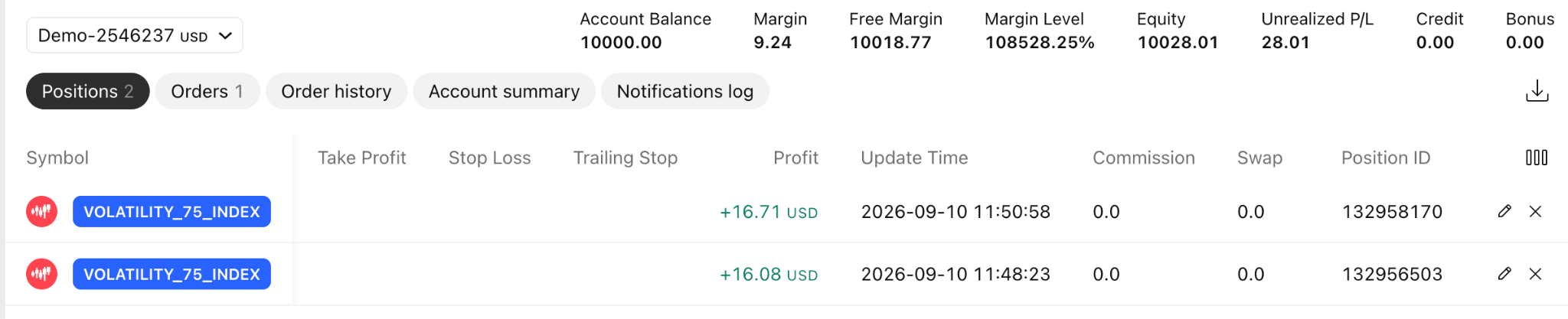
Open Positions in the Trading Panel. The row shows information such as the symbol, direction, quantity, entry price, and current unrealised profit or loss.
You can also display positions and orders directly on the chart. This makes it easier to compare the entry price and protective levels with the current market price.
Step 10: Adjust take profit or stop loss
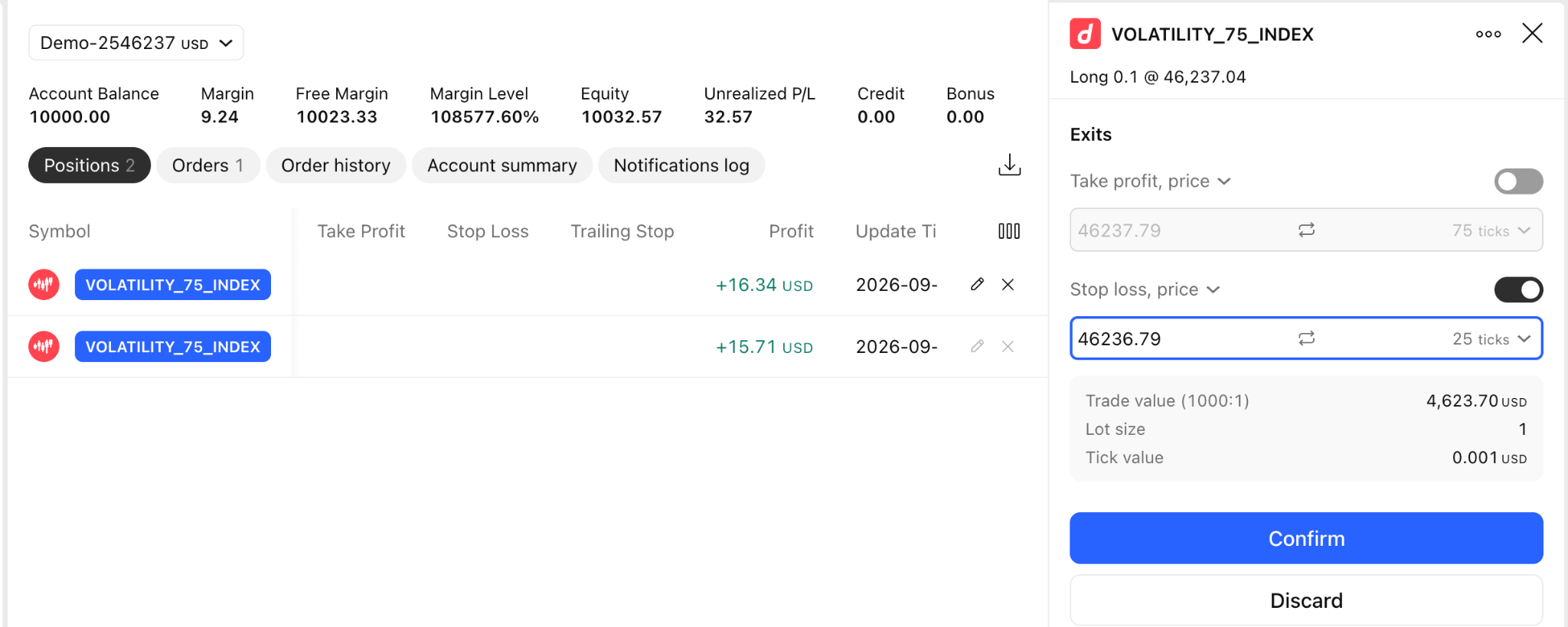
Where supported, use the position controls in the Positions tab or chart lines to add or amend the position's take-profit and stop-loss instructions. Toggle on the desired risk control, enter the amount and confirm the new level. Check that the modification was accepted and that the updated take-profit or stop-loss level appears in the position details.
Step 11: Close all or part of a position
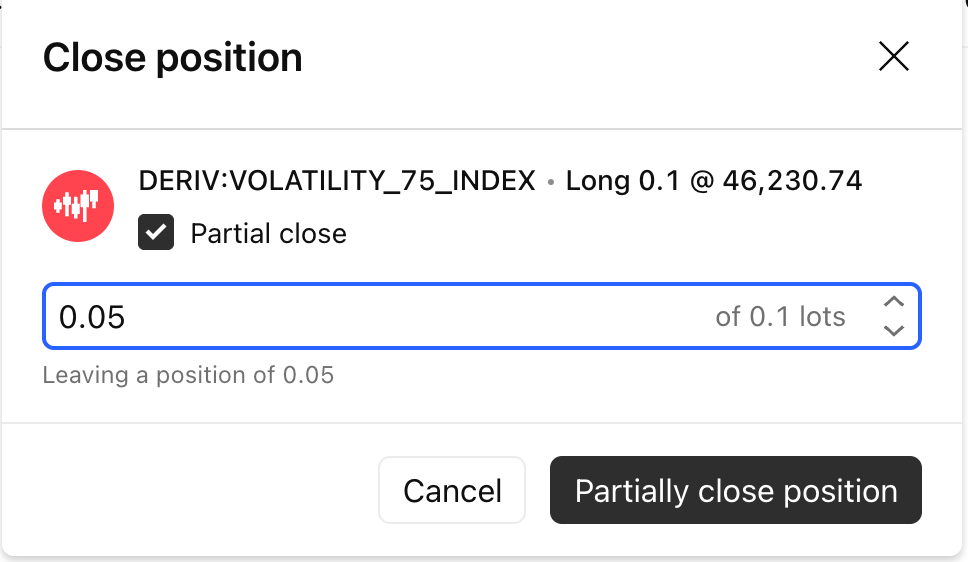
In Positions, select Close for the position. Where partial closing is supported, enter a quantity smaller than the open position. Otherwise, close the full quantity.
Review the close preview if it appears, then confirm. A market close is subject to the available execution price when the instruction reaches the market.
Step 12: Confirm the position is closed
Check that the position no longer appears in the Positions tab, or that the remaining quantity is correct after a partial close. Use account history to review the completed trade.

Key reminders for placing orders and managing positions
- Always verify the account, instrument, direction, order type, and quantity before submitting an order.
- A pending order is not an open position until it fills.
- Limit orders may not fill.
- Stop orders can execute at a price different from their trigger price.
- Take profit and stop loss can help manage risk but do not guarantee the requested execution price.
- One-click trading removes the confirmation step.
- Deposits, withdrawals, and other account management remain on Deriv.
Quiz
FAQs