You can now connect your Deriv account to TradingView and place trades directly from its charts. This guide walks you through why traders use TradingView, what you get from connecting it to your Deriv account, and how to set up the connection in four steps.
Why connect TradingView to your Deriv account?
Connecting the two platforms lets you analyse and trade in the same place. Instead of switching between TradingView for charts and your Deriv account to place orders, you can do both from the TradingView interface. Meanwhile, your account, funds, and history continue to sit with Deriv.
This is particularly useful if you:
- Already use TradingView's charts, indicators, or watchlists as part of your analysis
- Want to act on a chart setup the moment you spot it, without switching tabs
- Trade on TradingView's alerts and want to place orders directly from them
- Prefer to keep your analysis and execution tools in one window
Your funds, account management, and deposits or withdrawals still happen on Deriv. TradingView simply gives you another way to place trades.
Before you start
A few things to check before you begin:
- A Deriv cTrader account will be connected. Only demo and real Deriv cTrader accounts are supported for this connection. If you don't have a Deriv cTrader account yet, one will be created for you automatically as a demo account during setup. No extra step needed.
- Deposits and withdrawals stay on Deriv. All funding activity continues to happen through your Deriv account, not through TradingView.
How to set up a Deriv TradingView account
The whole process takes only a few minutes. Here's how it works.
Step 1: Sign up for a Deriv account
Sign up for a free Deriv account if you don't already have one.
Step 2: Find TradingView on your Deriv dashboard
Log in to your Deriv dashboard, find TradingView under CFDs section and click on the icon. Once on the TradingView screen, review the account details and click Connect to TradingView
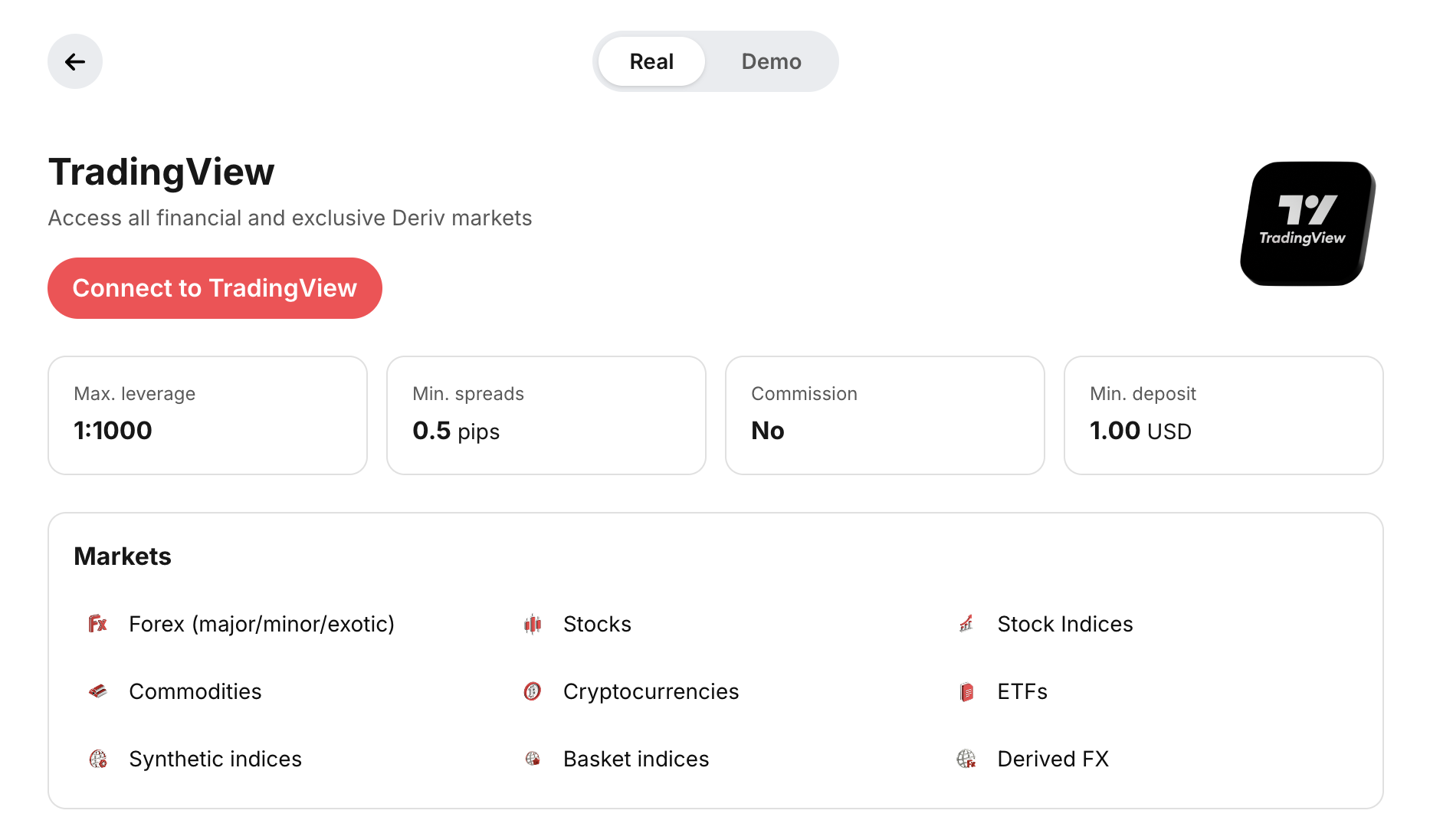
Click Go to TradingView to start the process of linking your accounts. TradingView website will open in a new tab.

Step 3: Create a TradingView account or sign in to your existing TradingView account
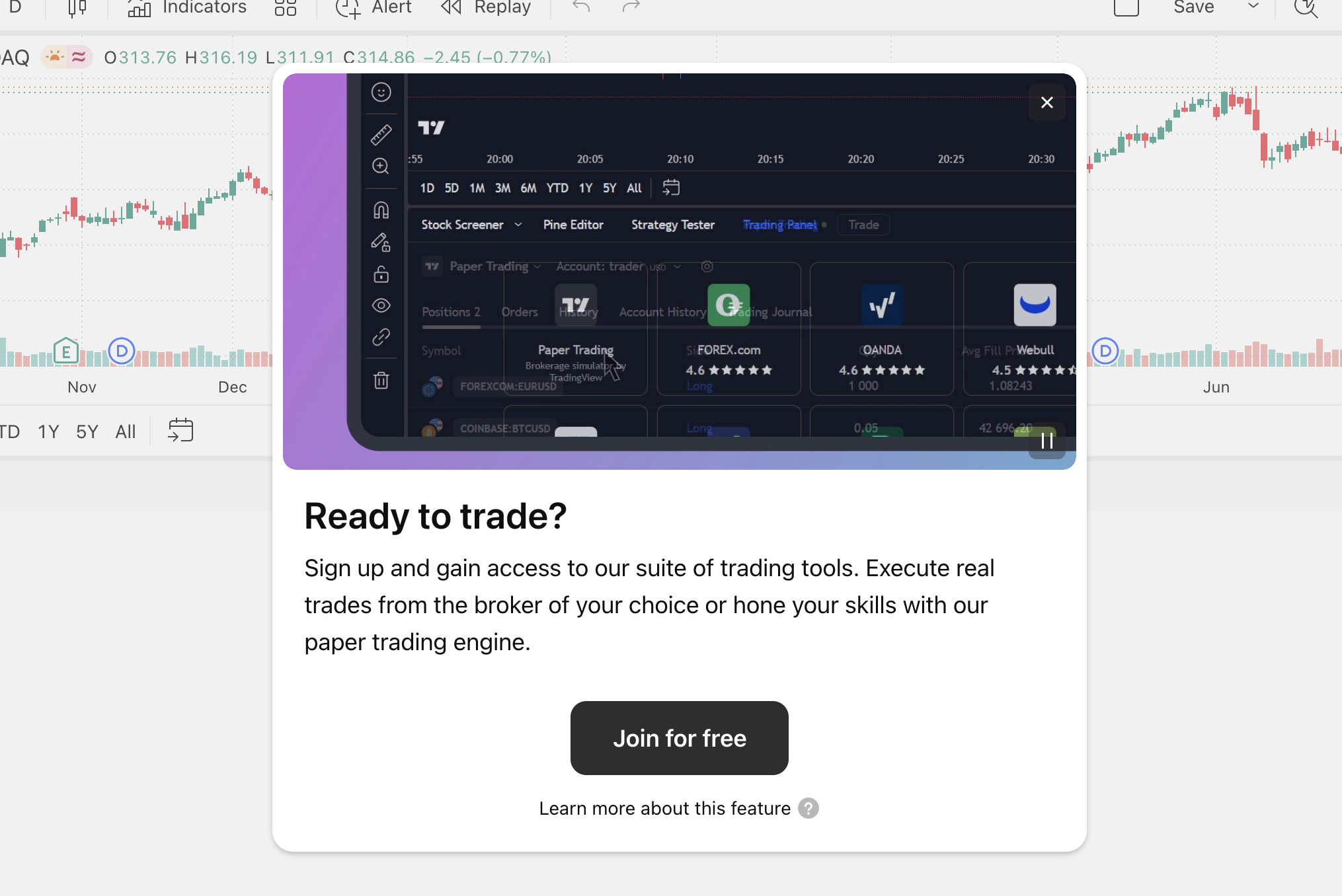
Click on Join for free to create your TradingView account on the next page. If you already have a TradingView account, click on this button and you will be able to choose the option to sign in to an existing account on the next screen.
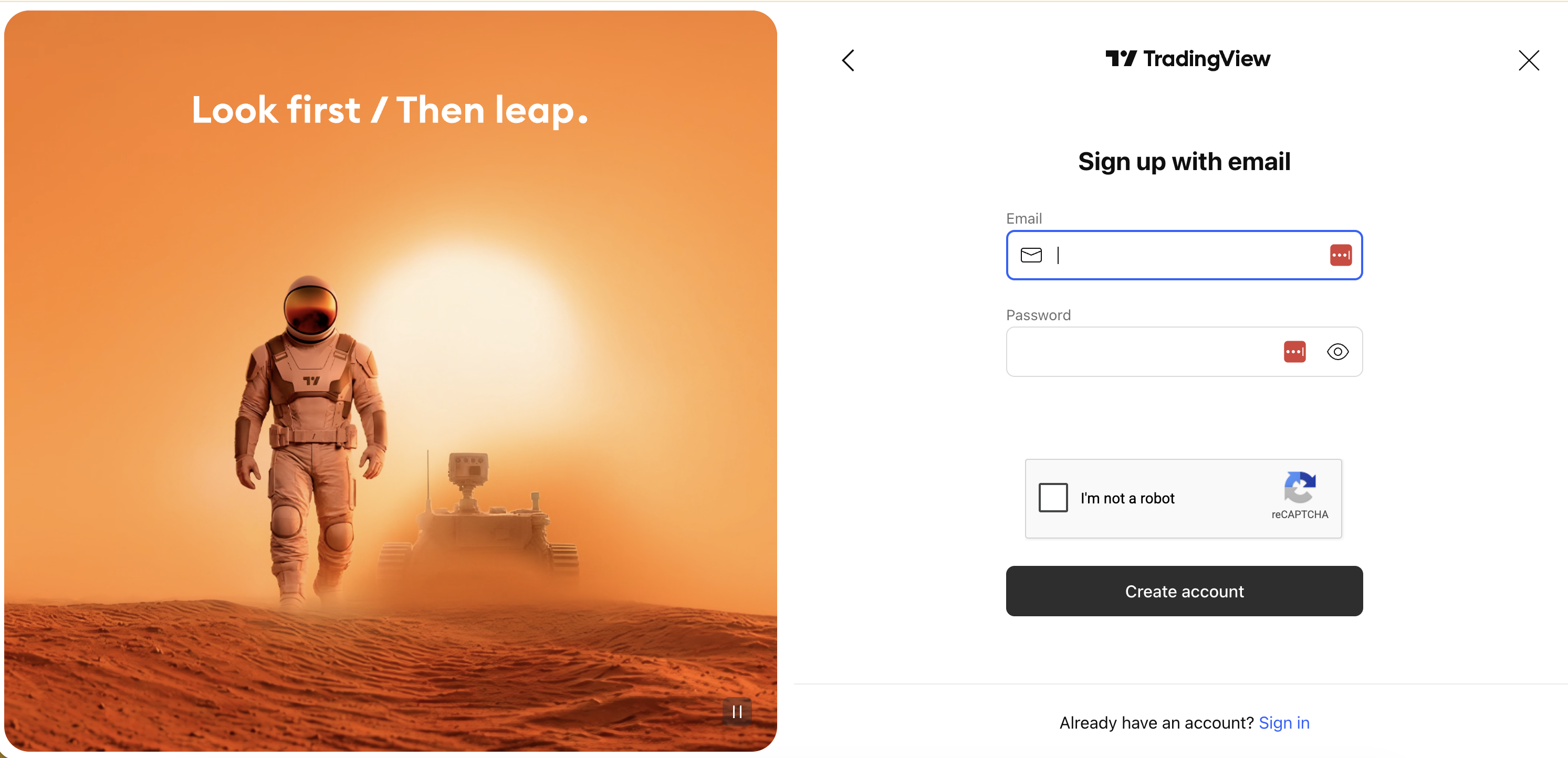
Sign up with your email address and password or use any of the available social media login options. Alternatively, you will be able to sign in to your existing TradingView account using the Sign in button in the bottom of the page.
Step 4: Connect your accounts
After you have successfully signed up or logged in to TradingView, connect your accounts using the Connect button.

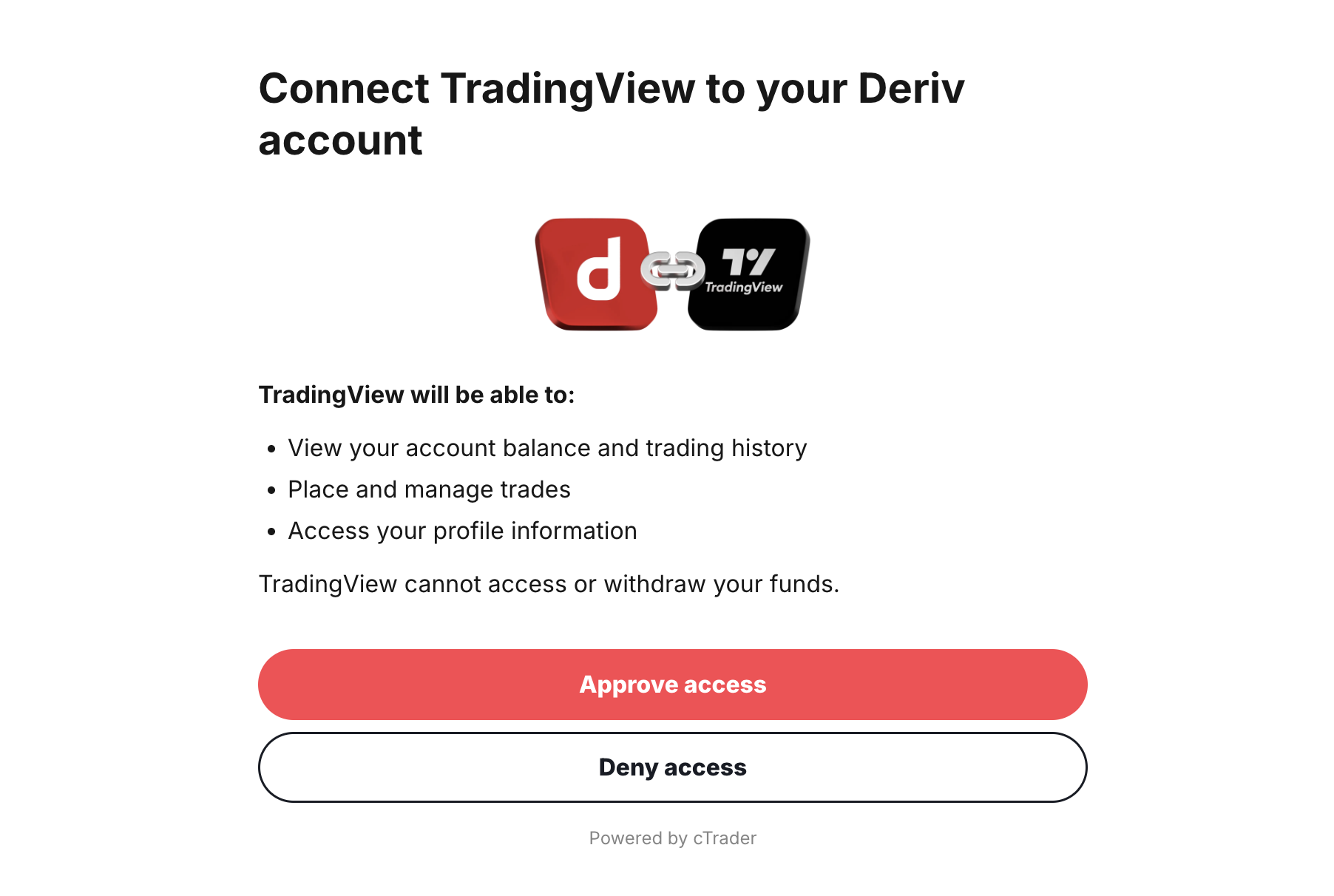
After connecting, you'll see a consent screen showing what TradingView will be allowed to do with your Deriv account:
- View your Deriv profile
- View your trading data
- Place trades on your behalf
Read through the permissions and click Approve access to continue.
Step 4: Start trading
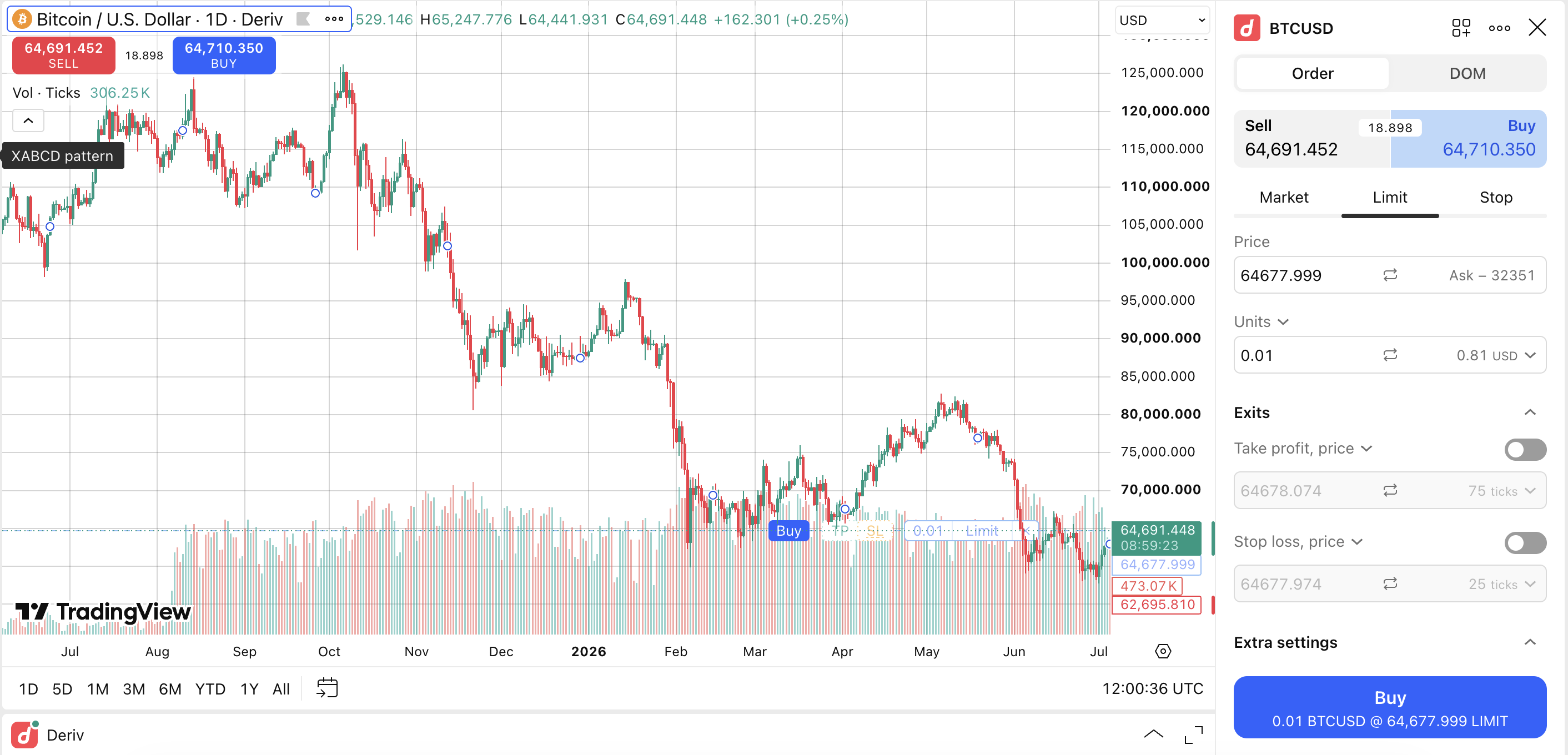
You'll be redirected back to TradingView, and trading is now enabled. Choose your favourite instrument and start trading directly on TradingView's charts. Your trades will be executed on your connected Deriv cTrader account.
Things to remember
- Deposits and withdrawals are managed on Deriv. TradingView is for analysis and order placement. To add or withdraw funds, log in to Deriv directly.
- You can disconnect any time. If you want to remove the connection later, you can do so from your TradingView account settings or from your Deriv account.
If something doesn't look right or you can't complete a step, you can reach out through the Deriv Help centre or live chat for support.
Why traders use TradingView
TradingView has become a go-to platform for traders at every level, from beginners learning to read a chart, to professionals running complex strategies. Here's what it offers.
Advanced charting trading strategies
TradingView's charts go well beyond the basics. You can choose from a wide range of chart types, including candlesticks, Heikin Ashi, Renko, Range, Point & Figure, and more, and analyse price action across multiple timeframes on a single screen. Traders can open up to 16 charts at once, with synchronised symbols, timeframes, and drawings.
Hundreds of indicators and drawing tools technical indicators
The platform comes with over 400 built-in indicators and strategies, more than 110 smart drawing tools, and access to over 100,000 community-built indicators. Whether you rely on moving averages, Fibonacci retracements, or volume profile analysis, the tools are already there.
Pine Script for custom analysis
If the built-in tools aren't enough, TradingView's own programming language, Pine Script, lets you build your own indicators and strategies or use ones shared by the community. You don't need to be a developer to get started, and the active script library means you'll often find what you need already built.
Flexible, cloud-based alerts
TradingView's alerts run on its servers, so they keep working even when your computer is off. You can set alerts based on price levels, indicators, drawings, or custom Pine Script conditions, and receive them through the app, email, SMS, or webhooks.
Screeners and watchlists
Screeners let you filter assets by hundreds of criteria across stocks, ETFs, bonds, and crypto. Combined with watchlists that sync across your devices, this makes it easier to track ideas and spot opportunities without manual checking.
Bar Replay to practise on TradingView data
Bar Replay lets you rewind any chart and play it forward at your own pace. It's useful for testing how you would have read a setup in real time, or for practising entries and exits on past market conditions.
A large, active trading community
TradingView hosts one of the largest public communities of traders, where members share trade ideas, analysis, and scripts. You can follow other traders, comment on ideas, and learn from how experienced users approach the markets.
Works across all your devices
Your layouts, watchlists, alerts, and settings sync automatically between web, desktop, and mobile. You can start analysing on your laptop and pick up exactly where you left off on your phone.
Quiz
FAQs