يمكنك الآن ربط حساب Deriv الخاص بك بـ TradingView وتنفيذ الصفقات مباشرةً من رسومه البيانية. يرشدك هذا الدليل إلى سبب استخدام المتداولين لـ TradingView، وما تحصل عليه من ربطه بحساب Deriv الخاص بك، وكيفية إعداد الاتصال في أربع خطوات.
لماذا تربط TradingView بحساب Deriv الخاص بك؟
يتيح لك ربط المنصتين التحليل والتداول في نفس المكان. بدلاً من التبديل بين TradingView للرسوم البيانية وحساب Deriv لتنفيذ الأوامر، يمكنك القيام بكليهما من واجهة TradingView. في الوقت نفسه، يستمر حسابك وأموالك وسجلك مع Deriv.
هذا مفيد بشكل خاص إذا كنت:
- تستخدم بالفعل رسوم TradingView البيانية أو المؤشرات أو قوائم المراقبة كجزء من تحليلك
- تريد التصرف بناءً على إعداد الرسم البياني بمجرد أن تلاحظه، دون تبديل علامات التبويب
- تتداول بناءً على تنبيهات TradingView وتريد تنفيذ الأوامر مباشرةً منها
- تفضل الاحتفاظ بأدوات التحليل والتنفيذ في نافذة واحدة
لا تزال أموالك وإدارة حسابك والإيداعات أو السحوبات تتم على Deriv. يمنحك TradingView ببساطة طريقة أخرى لتنفيذ الصفقات.
قبل أن تبدأ
بعض الأمور التي يجب التحقق منها قبل أن تبدأ:
- سيتم ربط حساب Deriv cTrader. فقط حسابات Deriv cTrader التجريبية والحقيقية مدعومة لهذا الاتصال. إذا لم يكن لديك حساب Deriv cTrader بعد، فسيتم إنشاء واحد لك تلقائياً كحساب تجريبي أثناء الإعداد. لا حاجة لخطوة إضافية.
- تبقى الإيداعات والسحوبات على Deriv. يستمر حدوث جميع أنشطة التمويل من خلال حساب Deriv الخاص بك، وليس من خلال TradingView.
كيفية إعداد حساب Deriv TradingView
تستغرق العملية بأكملها بضع دقائق فقط. إليك كيفية عملها.
الخطوة 1: سجّل للحصول على حساب Deriv
سجّل للحصول على حساب Deriv مجاني إذا لم يكن لديك حساب بعد.
الخطوة 2: ابحث عن TradingView في لوحة تحكم Deriv
سجّل الدخول إلى لوحة تحكم Deriv، وابحث عن TradingView ضمن قسم العقود مقابل الفروقات (CFDs)، ثم انقر على الأيقونة. بعد الوصول إلى شاشة TradingView، راجع تفاصيل الحساب وانقر على الاتصال بـ TradingView
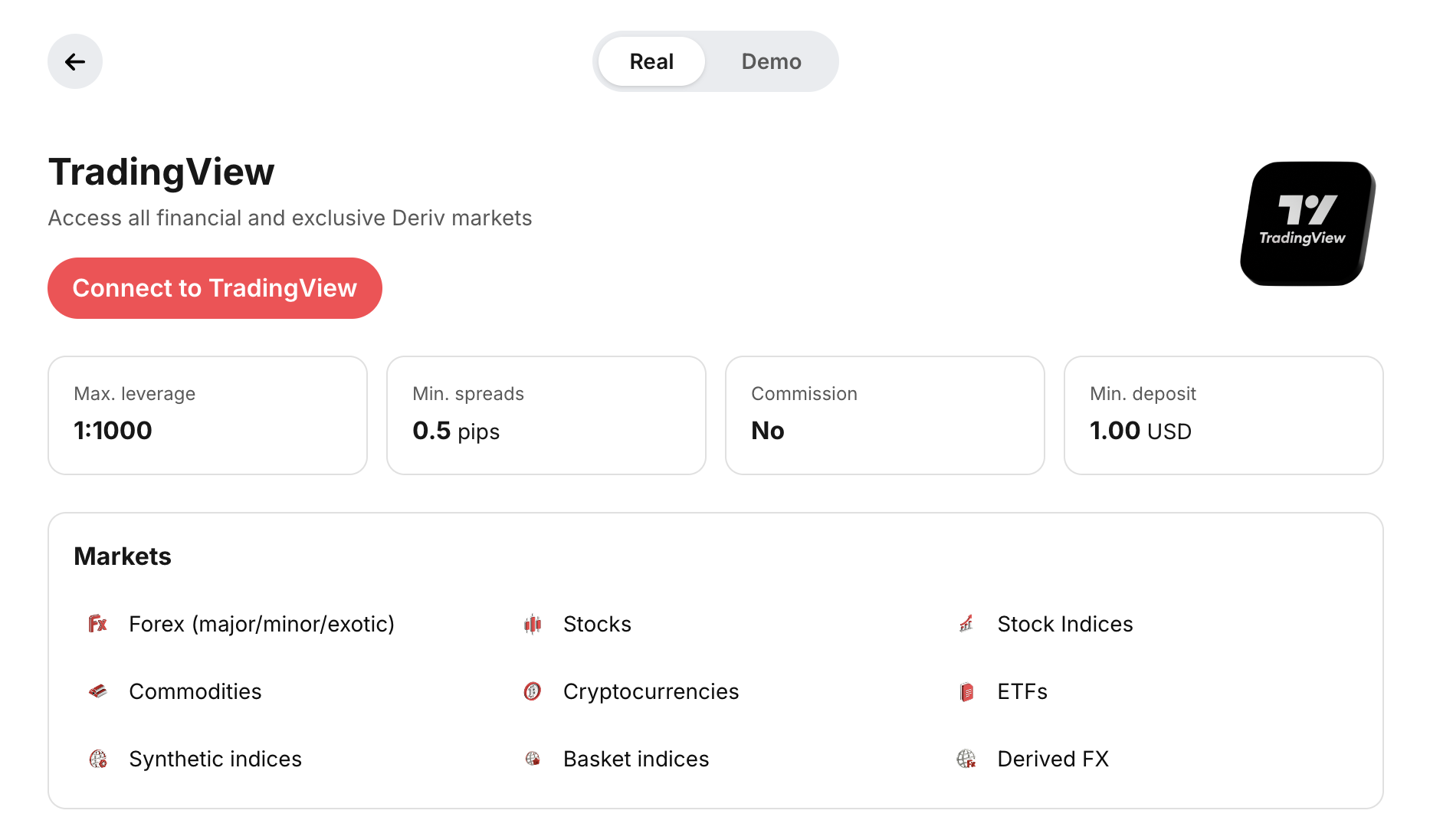
انقر على الانتقال إلى TradingView لبدء عملية ربط حساباتك. سيتم فتح موقع TradingView في علامة تبويب جديدة.

الخطوة 3: إنشاء حساب TradingView أو تسجيل الدخول إلى حساب TradingView الحالي
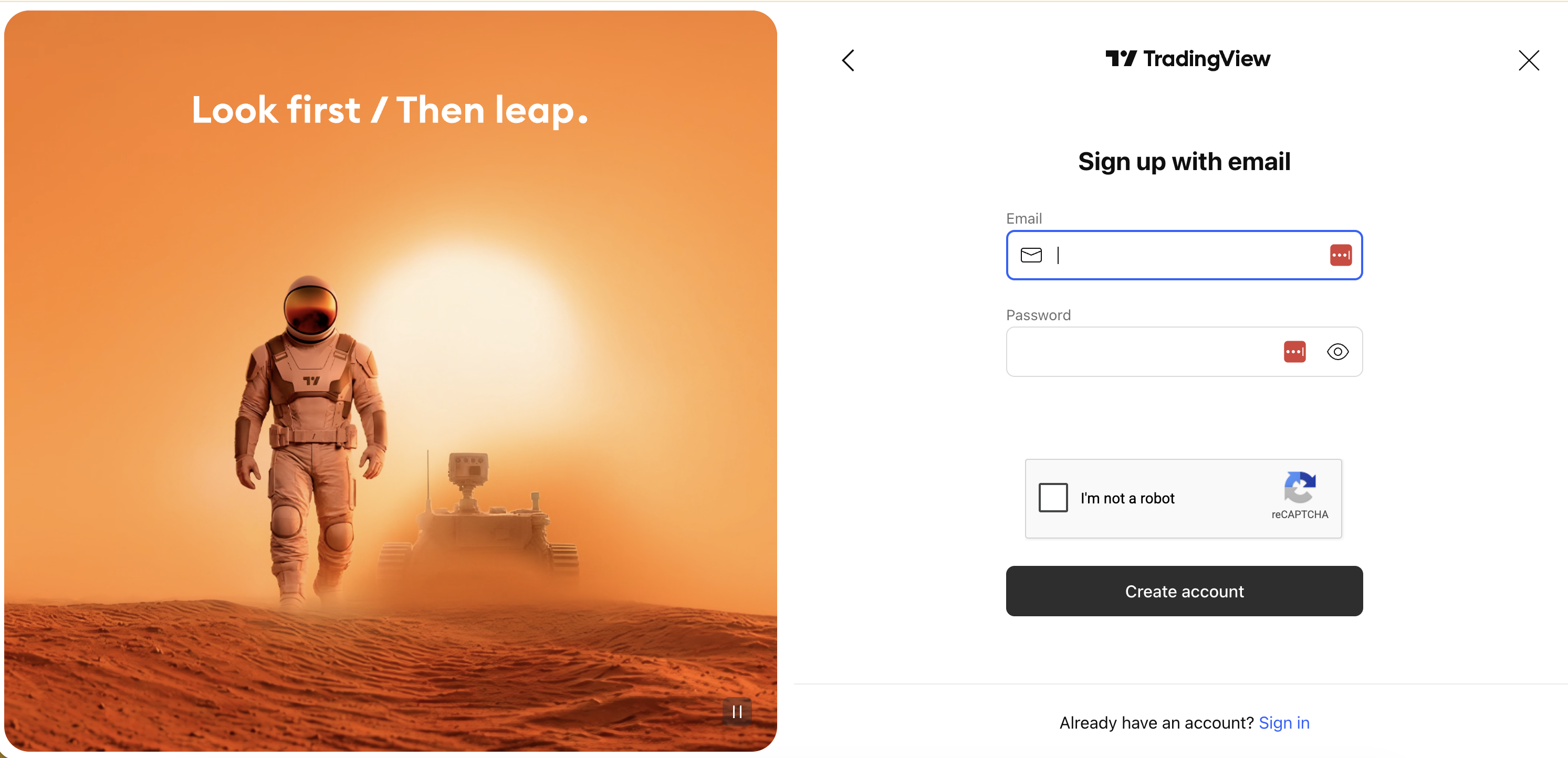
انقر على انضم مجاناً لإنشاء حساب TradingView في الصفحة التالية. إذا كان لديك حساب TradingView بالفعل، انقر على هذا الزر وستتمكن من اختيار خيار تسجيل الدخول إلى حساب موجود في الشاشة التالية.
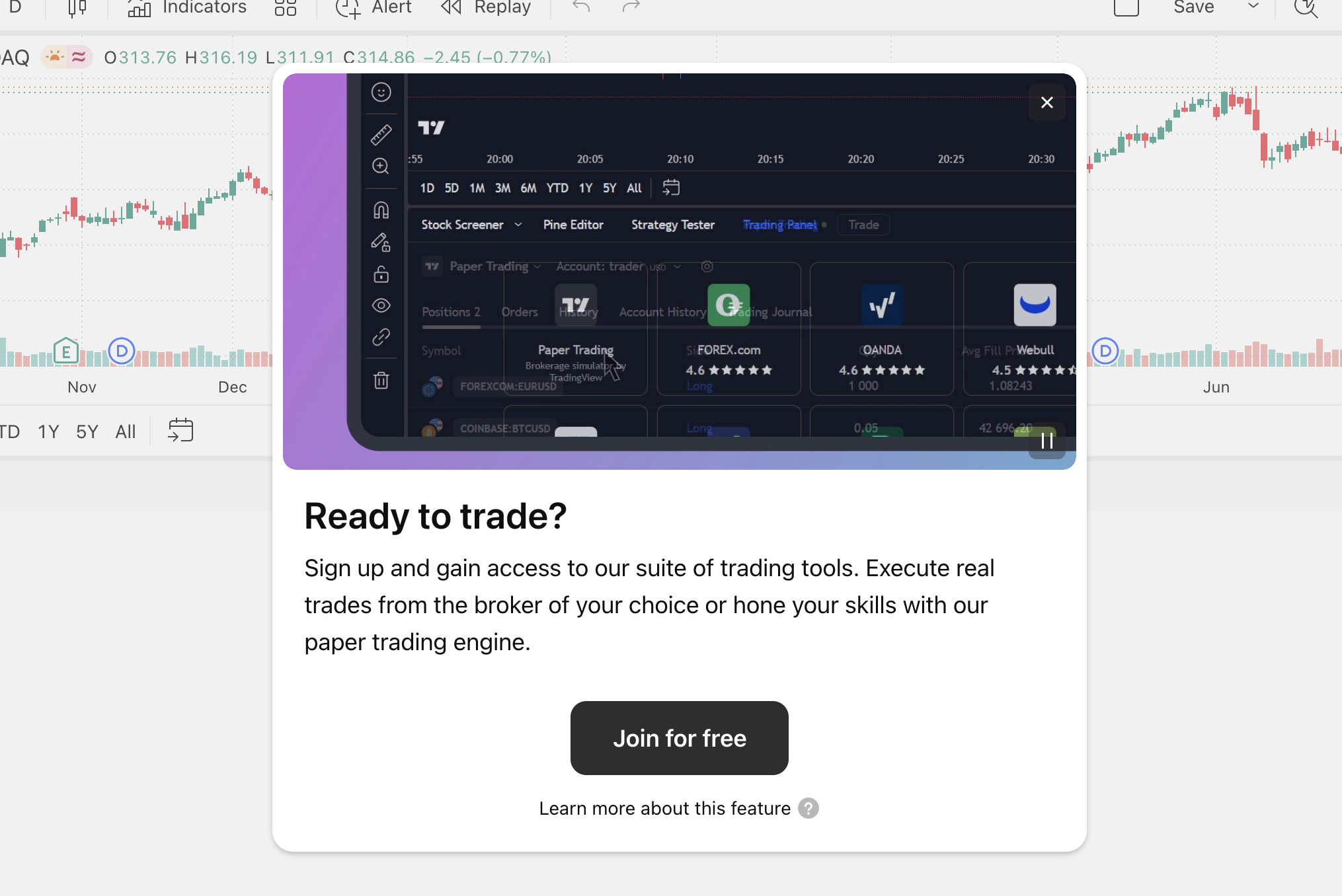
سجّل بعنوان بريدك الإلكتروني وكلمة المرور، أو استخدم أيًّا من خيارات تسجيل الدخول المتاحة عبر وسائل التواصل الاجتماعي. بدلاً من ذلك، يمكنك تسجيل الدخول إلى حساب TradingView الحالي الخاص بك باستخدام زر تسجيل الدخول في أسفل الصفحة.
الخطوة 4: ربط حساباتك
بعد التسجيل بنجاح أو تسجيل الدخول إلى TradingView، قم بربط حساباتك باستخدام زر Connect.

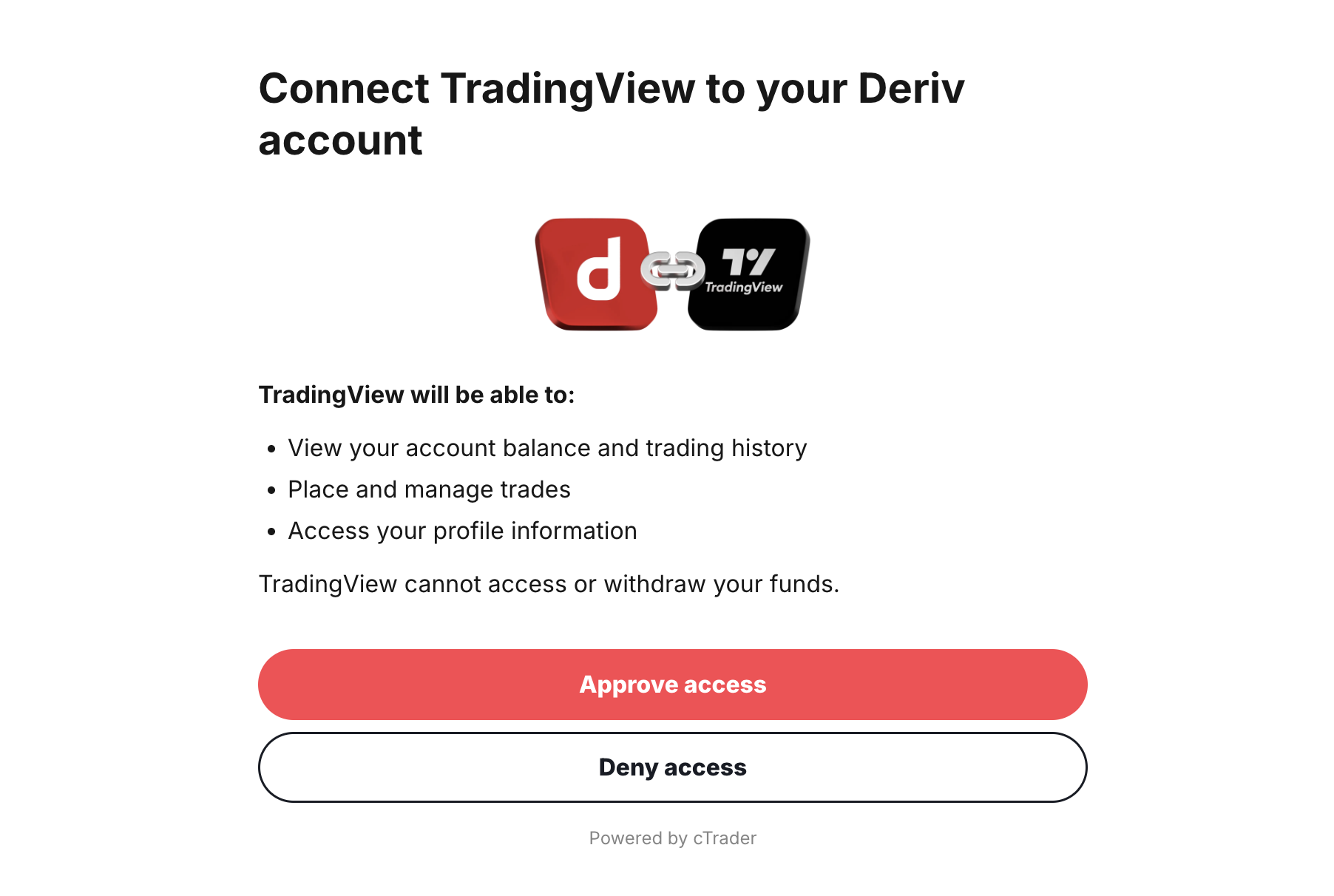
بعد الاتصال، ستظهر لك شاشة موافقة توضح ما سيُسمح لـ TradingView بالقيام به في حساب Deriv الخاص بك:
- عرض ملفك الشخصي في Deriv
- عرض بيانات التداول الخاصة بك
- تنفيذ عمليات التداول نيابة عنك
اقرأ الأذونات وانقر على الموافقة على الوصول للمتابعة.
الخطوة 4: ابدأ التداول
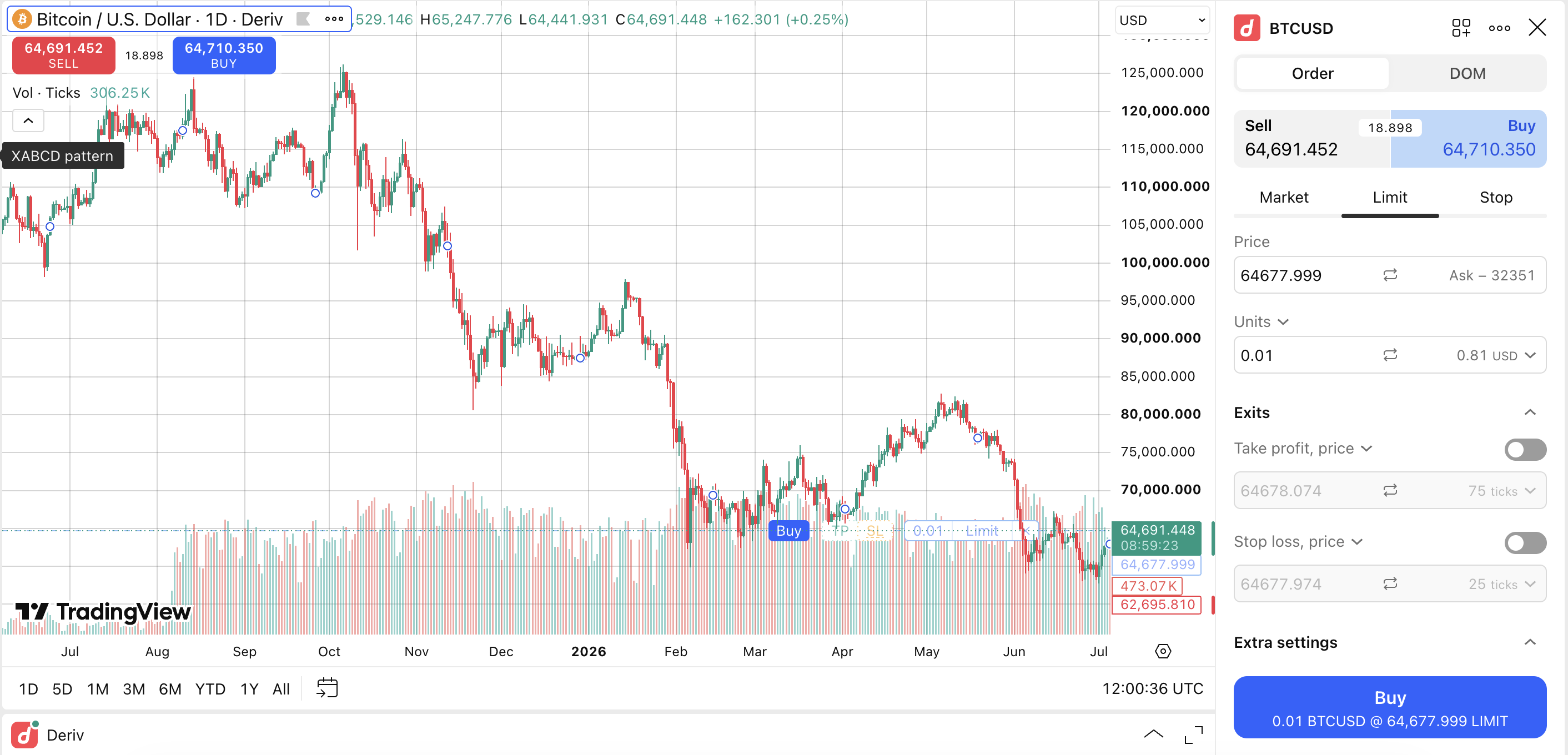
سيتم إعادة توجيهك إلى TradingView، والتداول مفعّل الآن. اختر أداتك المفضلة وابدأ التداول مباشرة على الرسوم البيانية في TradingView. سيتم تنفيذ تداولاتك على حساب Deriv cTrader المتصل الخاص بك.
أشياء يجب تذكرها
- تتم إدارة الإيداعات والسحوبات على Deriv. TradingView مخصص للتحليل وتنفيذ الأوامر. لإضافة أو سحب الأموال، سجل الدخول إلى Deriv مباشرة.
- يمكنك قطع الاتصال في أي وقت. إذا كنت ترغب في إزالة الاتصال لاحقًا، يمكنك القيام بذلك من إعدادات حساب TradingView الخاص بك أو من حساب Deriv الخاص بك.
إذا لم يبدُ شيء ما صحيحًا أو لم تتمكن من إكمال خطوة، يمكنك التواصل من خلال مركز المساعدة في Deriv أو الدردشة المباشرة للحصول على الدعم.
لماذا يستخدم المتداولون TradingView
أصبح TradingView منصة مفضلة للمتداولين في كل المستويات، من المبتدئين الذين يتعلمون قراءة الرسم البياني، إلى المحترفين الذين يديرون استراتيجيات معقدة. إليك ما يقدمه.
رسوم بيانية متقدمة لاستراتيجيات التداول
تتجاوز الرسوم البيانية في TradingView الأساسيات بكثير. يمكنك الاختيار من مجموعة واسعة من أنواع الرسوم البيانية، بما في ذلك الشموع اليابانية، وهيكين آشي، ورينكو، والنطاق، والنقطة والرقم، والمزيد، وتحليل حركة السعر عبر أطر زمنية متعددة على شاشة واحدة. يمكن للمتداولين فتح ما يصل إلى 16 رسمًا بيانيًا في وقت واحد، مع رموز وأطر زمنية ورسومات متزامنة.
مئات المؤشرات وأدوات الرسم للمؤشرات الفنية
تأتي المنصة بأكثر من 400 مؤشر واستراتيجية مدمجة، وأكثر من 110 أداة رسم ذكية، والوصول إلى أكثر من 100,000 مؤشر مبني من قبل المجتمع. سواء كنت تعتمد على المتوسطات المتحركة، أو ارتدادات فيبوناتشي، أو تحليل حجم التداول، فإن الأدوات موجودة بالفعل.
Pine Script للتحليل المخصص
إذا لم تكن الأدوات المدمجة كافية، فإن لغة البرمجة الخاصة بـ TradingView، Pine Script، تتيح لك بناء مؤشراتك واستراتيجياتك الخاصة أو استخدام المؤشرات التي يشاركها المجتمع. لا تحتاج إلى أن تكون مطورًا للبدء، ومكتبة البرامج النصية النشطة تعني أنك ستجد غالبًا ما تحتاجه مبنيًا بالفعل.
تنبيهات مرنة قائمة على السحابة
تعمل تنبيهات TradingView على خوادمها، لذا تستمر في العمل حتى عندما يكون جهاز الكمبيوتر الخاص بك مغلقًا. يمكنك ضبط التنبيهات بناءً على مستويات الأسعار، أو المؤشرات، أو الرسومات، أو شروط Pine Script المخصصة، وتلقيها من خلال التطبيق، أو البريد الإلكتروني، أو الرسائل النصية القصيرة، أو الويب هوكس.
أدوات الفحص وقوائم المراقبة
تتيح لك أدوات الفحص تصفية الأصول حسب مئات المعايير عبر الأسهم، وصناديق الاستثمار المتداولة، والسندات، والعملات المشفرة. بالاقتران مع قوائم المراقبة التي تتزامن عبر أجهزتك، يصبح من الأسهل تتبع الأفكار واكتشاف الفرص دون فحص يدوي.
Bar Replay للتدرب على بيانات TradingView
تتيح لك Bar Replay إرجاع أي رسم بياني وتشغيله للأمام بوتيرتك الخاصة. إنها مفيدة لاختبار كيفية قراءتك لإعداد ما في الوقت الفعلي، أو للتدرب على نقاط الدخول والخروج في ظروف السوق السابقة.
مجتمع تداول كبير ونشط
يستضيف TradingView أحد أكبر المجتمعات العامة من المتداولين، حيث يتشارك الأعضاء أفكار التداول والتحليلات والبرامج النصية. يمكنك متابعة متداولين آخرين، والتعليق على الأفكار، والتعلم من كيفية تعامل المستخدمين ذوي الخبرة مع الأسواق.
يعمل عبر جميع أجهزتك
تتزامن تخطيطاتك وقوائم المراقبة والتنبيهات والإعدادات تلقائيًا بين الويب وسطح المكتب والهاتف المحمول. يمكنك البدء في التحليل على الكمبيوتر المحمول الخاص بك ومتابعة تمامًا من حيث توقفت على هاتفك.
اختبار
الأسئلة الشائعة