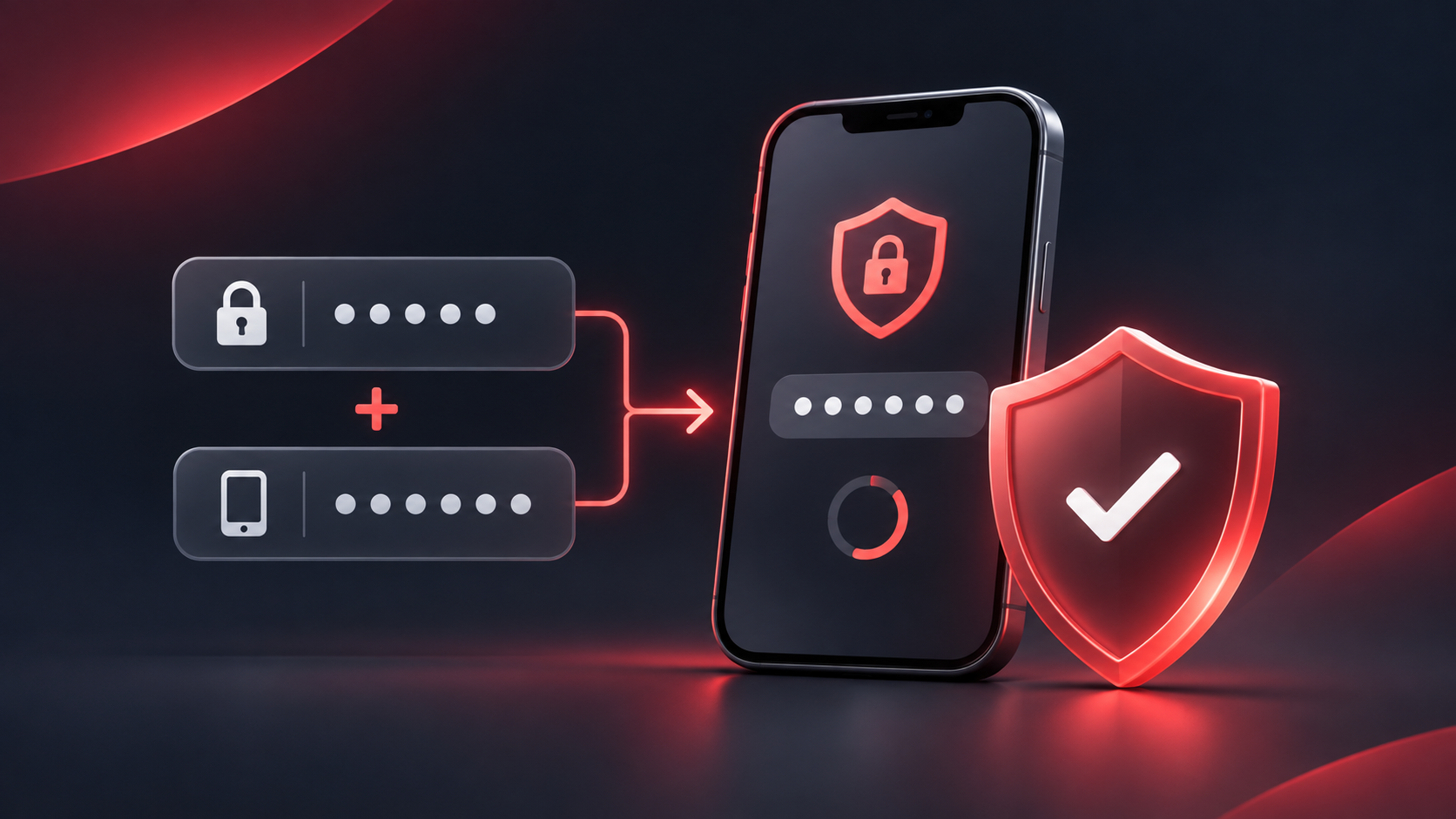
A strong password is important, but it can still be exposed through phishing, a data breach or an insecure device. Two-factor authentication (2FA) adds a second check at login: a time-limited code generated by an authenticator app. This guide explains how to turn it on, how to protect the setup, and what to do if you cannot access your code.
Quick summary
- 2FA asks for your password and a code from an authenticator app when you log in.
- Set it up only from an official Deriv website or app after you have logged in to your own account.
- The QR code used during setup is sensitive: do not screenshot it, share it or scan it on another person’s device.
- Deriv will not ask you for your password, 2FA code or other one-time passcodes.
- If you lose access to your authenticator, use official Deriv support rather than trying to bypass account security.
What two-factor authentication adds to your login
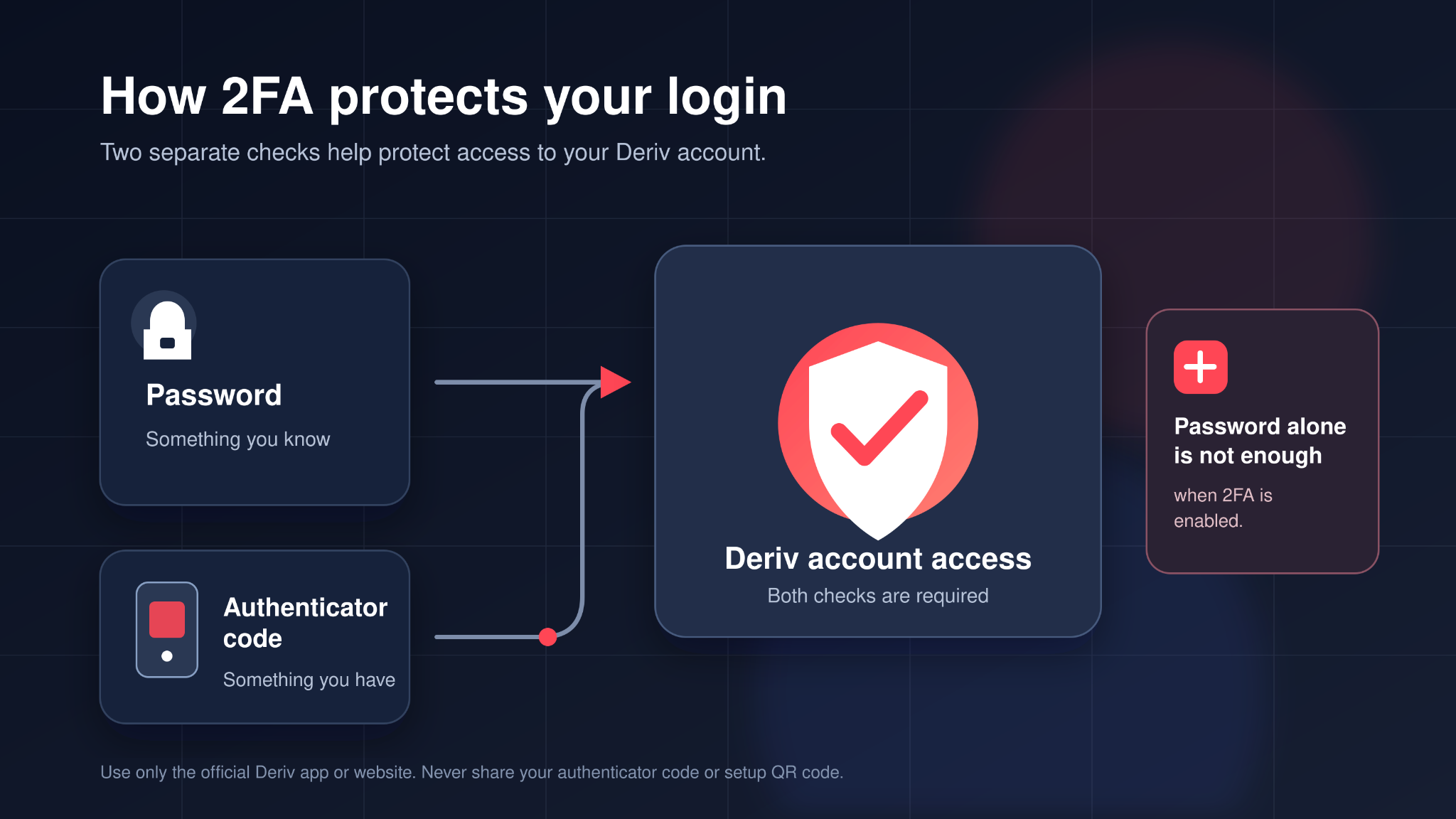
Two-factor authentication, or 2FA, verifies your login with two different factors:
- Something you know — your password.
- Something you have — a current code from an authenticator app on a device you control.
This means a password alone is not enough to complete a login when 2FA is active. It is an additional layer of protection, not a replacement for a unique password, a secure email inbox or careful phishing checks.
What an authenticator code is
An authenticator app generates short, time-based codes—commonly six digits. During setup, the app stores a secret that is represented by the QR code shown in your Deriv account. The app then uses that secret to produce the current code. Anyone who has the QR code or its setup secret may be able to generate the same codes, so treat it as carefully as a password.
Before you enable 2FA
Take a few moments to prepare. Doing this before you start helps avoid locking yourself out later.
Use a device you control
Install an authenticator app such as Google Authenticator, 1Password or Authy on a phone or other personal device that has a screen lock.
Do not install an authenticator app on a shared device, and do not ask another person to scan your QR code for you. If your phone supports device encryption, biometric lock or a strong passcode, enable those protections too.
Start from an official Deriv address or app
Type home.deriv.com into your browser yourself, or open the official Deriv app. Be wary of links in unexpected messages, sponsored search results and lookalike domains. Check the browser address before entering your email address, password or 2FA code.
Deriv will never ask for your password, private key or one-time passcodes. A request to share a code—even from someone claiming to be support—is a warning sign. Use contact details published on our official website if you need help.
Keep your email account secure too
Your email can be used for password resets and account notifications. Use a unique password for that email account, enable its available security features and review it for unfamiliar recovery addresses or sign-in activity. 2FA is strongest when your email and device are protected as well.
Turn on 2FA in your Deriv account
The email journey gives this route: Account settings > Security > Two-factor authentication. Labels can change as the account interface is updated, so treat the on-screen 2FA or security control as the source of truth.
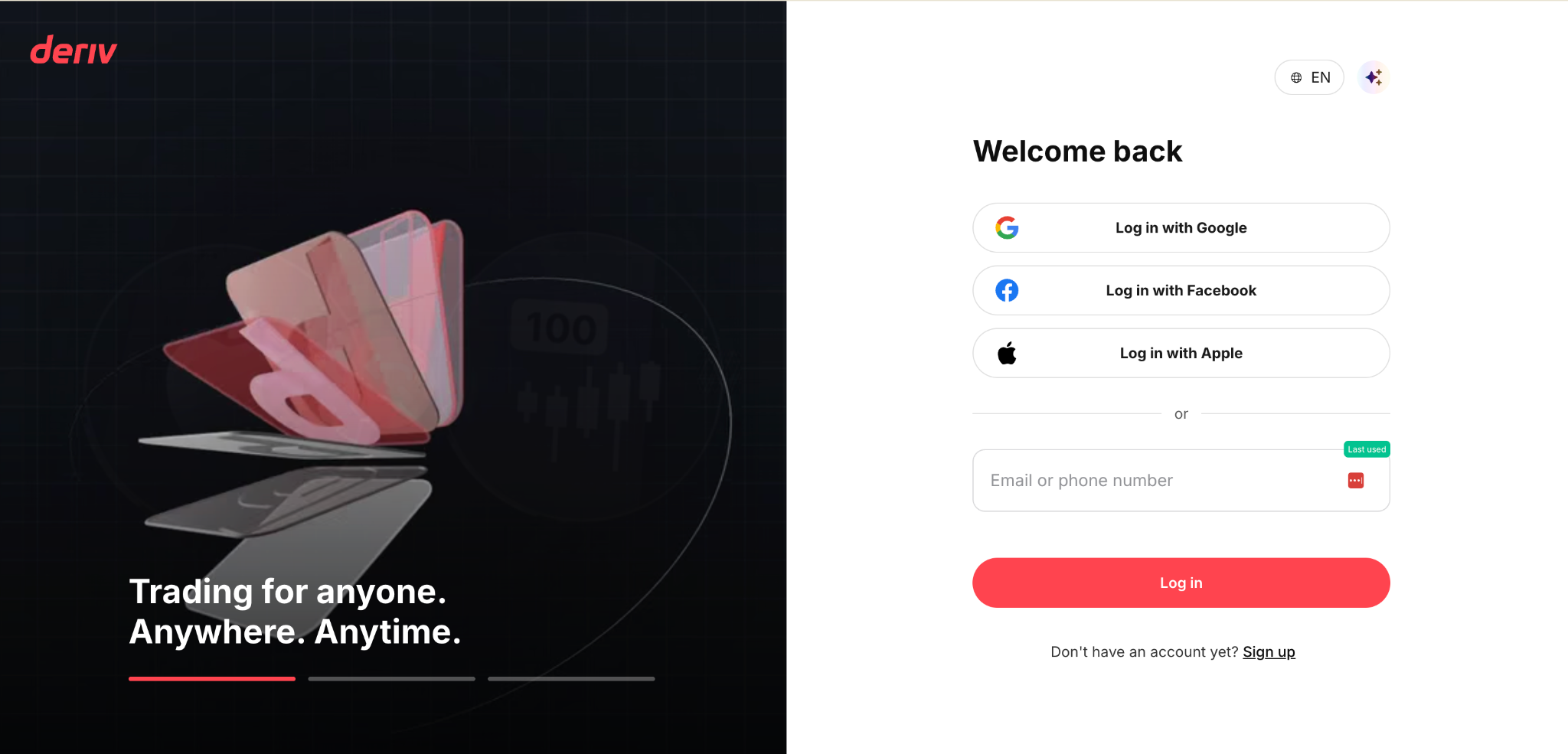
Step 1: Sign in securely
Open the official Deriv app or type home.deriv.com in your browser. Sign in to the account you want to protect. Avoid completing this step over a public or unsecured network where you do not trust the connection or device.
Step 2: Open the 2FA setup control
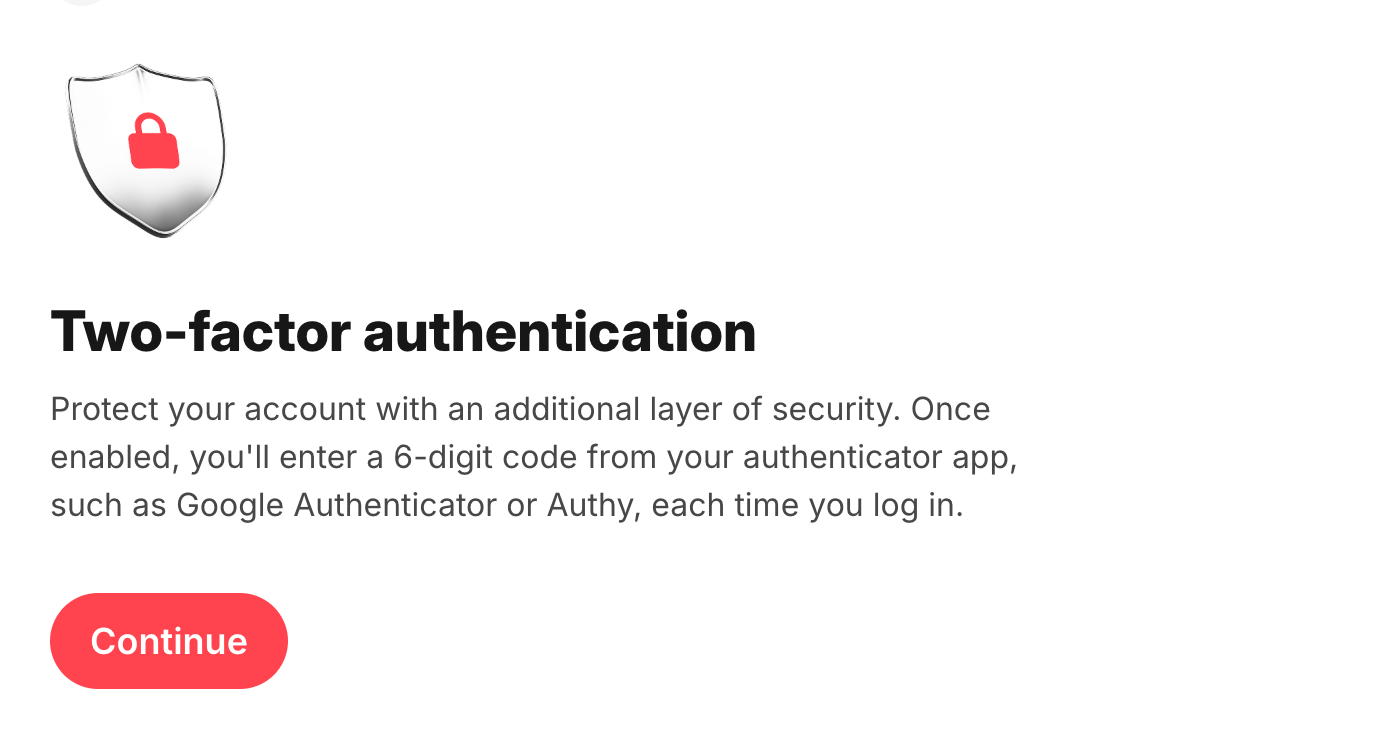
Go to Account settings, then Security, and select Two-factor authentication. Read the information on the screen before proceeding. You should see an option to begin setup and a QR code or comparable setup method.
Step 3: Add the account to your authenticator app
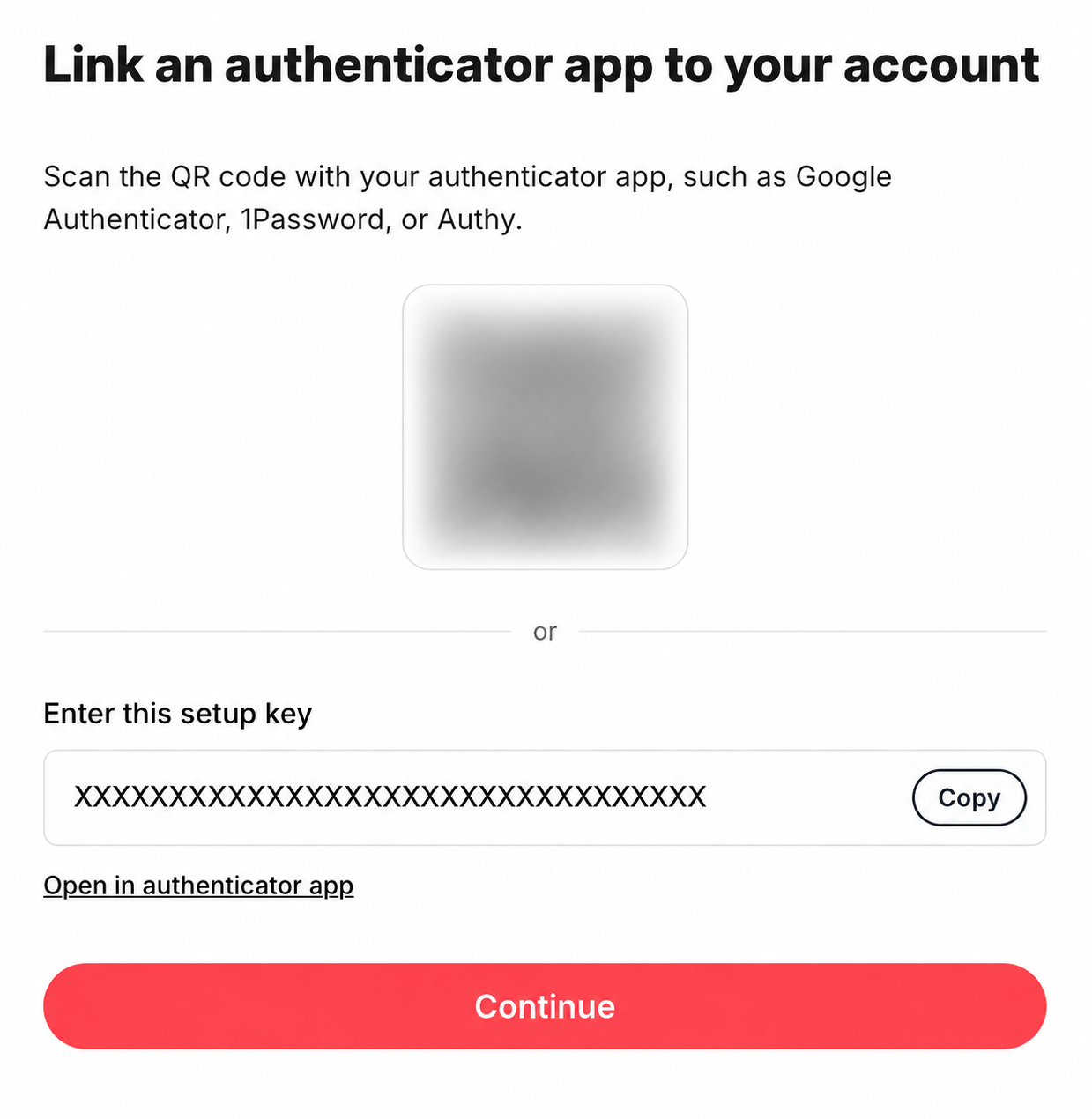
On your personal device, open your authenticator app and choose its option to add an account. Scan the QR code displayed in Deriv.
Do not save a screenshot of the QR code to your photo library, send it through a messaging app or store it in an unprotected document. The QR code is the setup secret for generating your account codes.
If the app cannot scan the code, follow only the manual-entry option displayed by Deriv and the authenticator app. Do not send the displayed setup value to anyone for help.
Step 4: Enter the current code and confirm
Your app will display the current code. Enter that code in the Deriv confirmation field, then complete the on-screen confirmation. Wait until the account confirms that 2FA is enabled before closing the setup screen.
The code changes regularly. If a code is rejected, wait for the next one to appear and enter it carefully. Check that your device’s date and time are set automatically; an incorrect device clock can affect time-based codes.
Step 5: Confirm you can use it next time
After the confirmation message appears, keep your authenticator app installed and your device secured. At a future login, Deriv may request the current code after your password. Enter it only on the official Deriv sign-in page or app.
Protect your authenticator app and recovery options
Enabling 2FA is only the first part of the process. Your authenticator app becomes an important part of accessing your account.
Do not share codes or setup secrets
Treat a current authenticator code like a password: it is for entering into the official Deriv login or settings flow, not for sharing with another person. A legitimate support agent should not ask you to read a code aloud, send a screenshot or forward a QR code.
Be especially cautious if a caller or message creates urgency, asks you to install remote-access software, or says your account must be “verified” by sharing a code. End the interaction and contact Deriv through an official channel.
Plan for a replacement phone
Before you change or reset a phone, check the recovery and transfer options offered by your chosen authenticator app. Follow that app’s official instructions and keep any recovery information secure. Do not disable 2FA simply because you are changing devices unless you understand the account’s secure transfer or recovery process.
If you lose your phone or can no longer generate a code, use Deriv’s official support channels. Be prepared to complete the account-verification process requested by support. Do not attempt repeated guesses or use an unverified third party to recover access.
What to do if you suspect unauthorised access
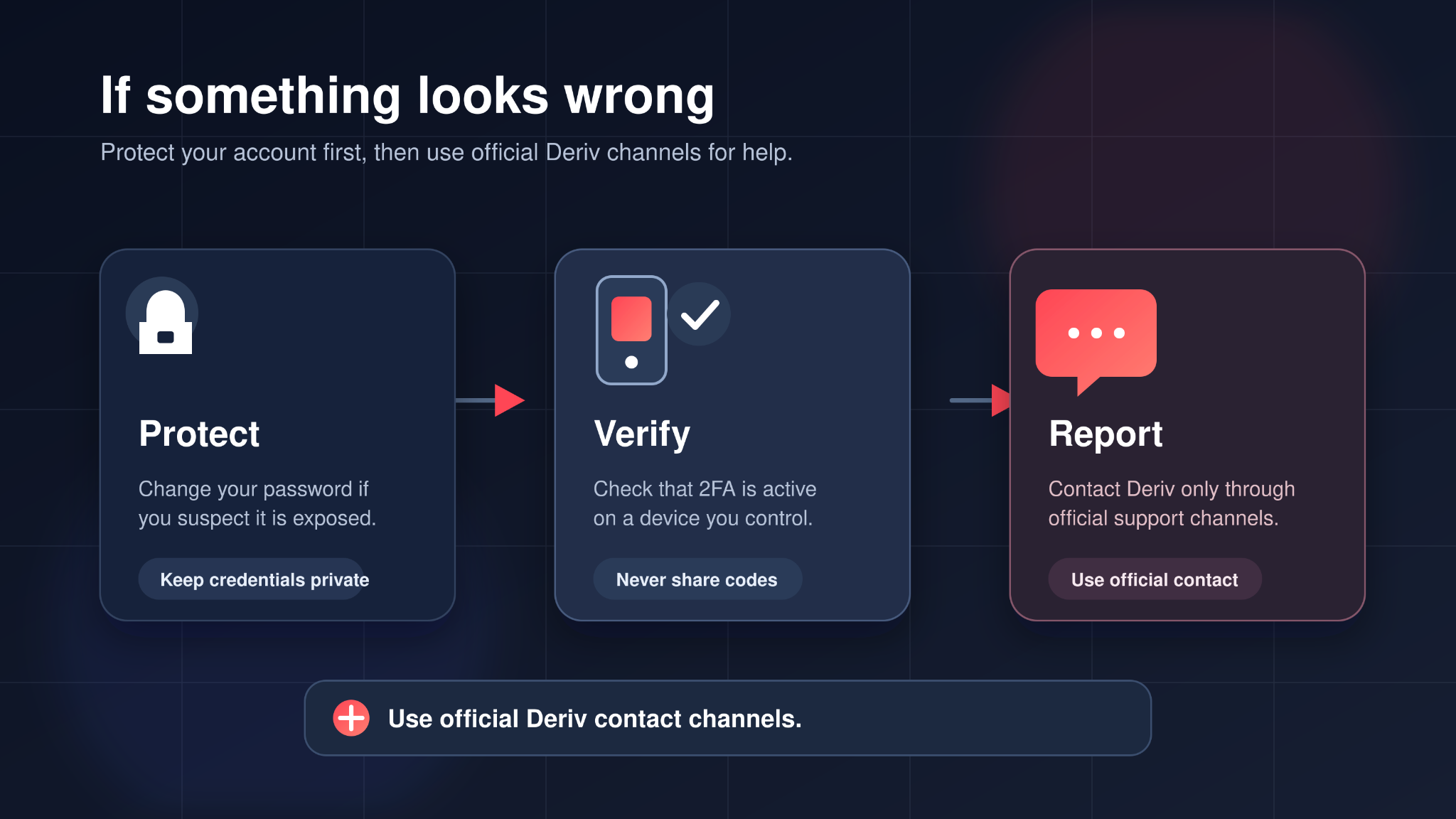
Act promptly, but only through official channels.
- Change your Deriv password from official website or app if you can still access your account.
- Change the password for the email address associated with the account and review its security settings.
- Review your 2FA setup and remove unfamiliar devices or sessions where the account provides those controls.
- Contact Deriv customer support via the official Help Centre or live chat if you are unable to secure access yourself.
- Never give a password, recovery secret or one-time code to someone claiming they can “restore” the account.
Things to remember
- 2FA makes a password alone insufficient for login, but it does not make it safe to share passwords or codes.
- Never share the QR code or setup secret used to connect an authenticator app.
- Use a lock on the device that holds your authenticator app.
- Enter codes only in an official Deriv app or website after checking the address.
- If you lose access, contact official support rather than trying to defeat the security check.
Next step
Open the official Deriv app or type home.deriv.com into your browser, then go to Account settings > Security > Two-factor authentication. Use your own authenticator app to scan the QR code and enter the current code shown. Once complete, keep your app and device secure.
Security reminder: Deriv will never ask you to share your password, QR code, authenticator code, private key or other one-time passcode.
Quiz
What should you do if someone claiming to be Deriv support asks for your current 2FA code?
FAQs